Quick links, page age and locale
Quick links
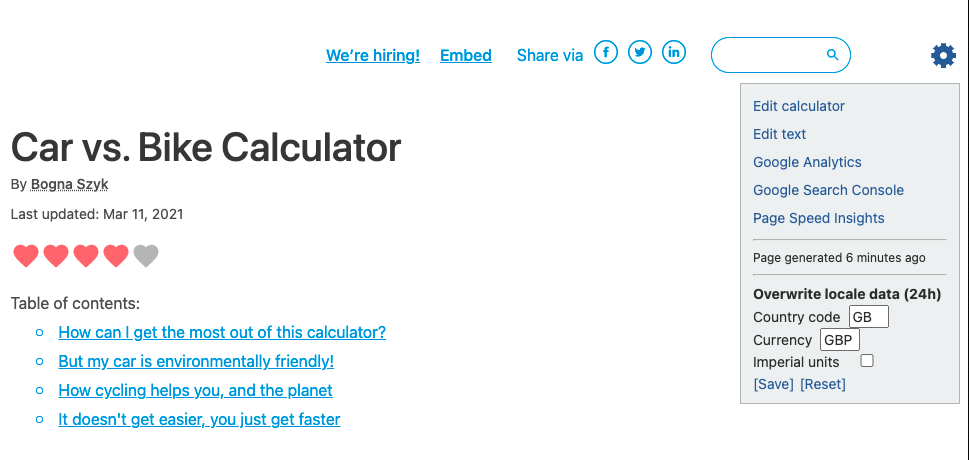
There are several handy links available to you once you click the gear cog icon in the top-right hand corner of the calculator page.
Edit calculator — Opens the edit calculator page.
Edit text — Opens the edit text page.
Google Analytics — Opens the Google Analytics page for this calculator — shows traffic this calculator is getting.
Google Search Console — Opens the Google Search Console for this calculator — show which keywords people used to find the calculator.
Page Speed Insights — Analyses the speed of the page (mainly for develops).
For detailed documentation on each of these pages, click on the links in the list above.
Tip
Clicking on these links will replace the calculator page. If you want to open them in a new tab instead, you can right-click on the link and choose Open link in new tab (or similar).
Page age
After the list of links, information about when the page was generated is shown. This is so you know whether you are looking at a version of the calculator that includes the changes you just made, or an old version. Try reloading the page to get the latest version (this can take ~10 minutes).
Overwrite locale data
To help test your calculator as if you were a user in another country, you can change the locale data.
There are three settings to play with:
Country code — Allows you to change the country you report to the calculator. Use the standard two-letter country codes.
Currency — Allows you to change the currency you report to the calculator. Use the standard three-letter currency codes.
Imperial units — Checking this box will make any variables that have a default imperial unit provided display that unit.
To make a change:
Make the changes you want.
Click the [Save] button.
Click the Reset defaults button, in order to see the imperial units update.
Changes will remain in effect for 24 hours.
To reset back to your regular settings, press the [Reset] button.
Warning
Changed local settings apply site-wide, to all calculators and will remain for 24 hours or until reset.