Calculators
The calculators tab is the default one when logging into adminBB. You can create a new calculator or find any existing one by its name or ID, go to its edit page, or check some of its basic information.
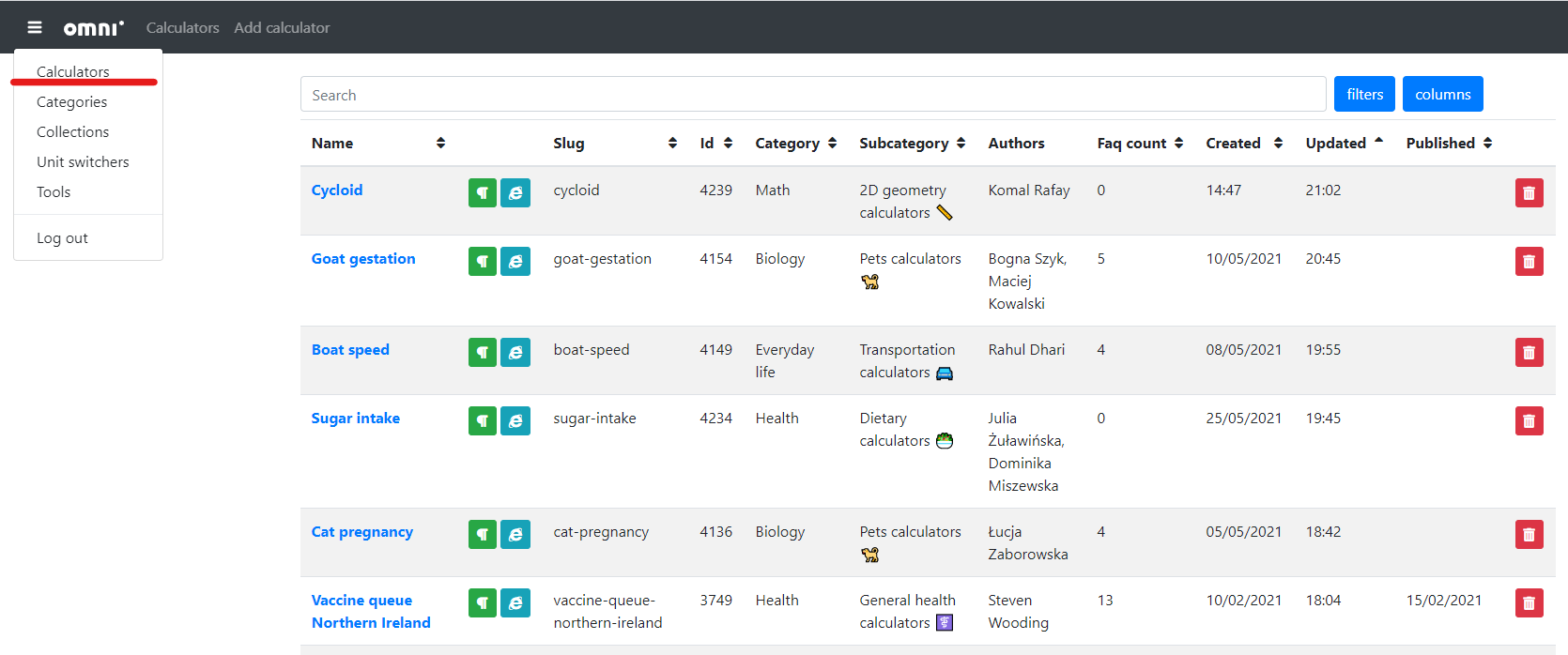
The start page of adminBB
The upper panel of the edit calculator page contains the following items, from left to right:
Three-bar hamburger menu — Access other parts of adminBB.
Omni logo and Calculators — The link to the current page, you can use it as a refresh button 🔄.
Add calculator — Creates a new calculator and takes you there.
Search panel
You can search a calculator by its name or ID:
Typing a string returns all the calculators with this phrase in their names (it can also be a part of the word, not necessarily an exact match).
Typing a number returns only the calculator with that ID (if it exists).
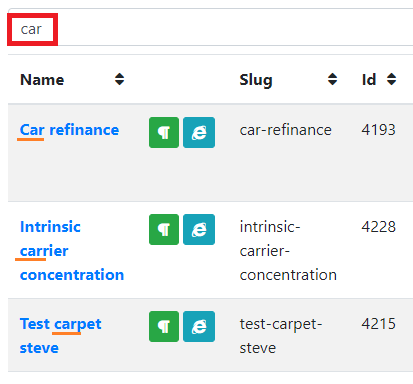
The example of using the search panel. See that names with words containing the phrase car, e.g. carrier, show up as well.
Filters
By defining some of these filters you can limit the search results depending on your needs:
Is published — Yes shows published calculators, No shows unpublished ones.
Purpose — You can choose between production, non production, temporary, or unassigned. You can check these descriptions here.
Categories — Shows calculators within a chosen category.
Author — Shows calculators by the selected author.
Redundant — Yes shows redundant calculators, No shows all the others.
Faq count — Shows calculators with FAQs within given range.
Updated at — Shows calculators which were updated between the given dates.
Published at — Shows calculators published between the given dates.
Selecting multiple options for one field shows every calculator that matches at least one of them. For instance, if you choose two authors, you’ll see all of their calculators - they don’t have to be co-authors of any 😉.
Columns
Here you can decide which calculators’ attributes you want to see. Name is always visible and you can choose which of the remaining ones are important for you. These are:
Slug;
ID;
Category;
Subcategory;
Authors;
Faq count;
Created;
Updated; and
Published.
Note
You can always come back to default settings by pressing Reset button.
Editing and deleting calculator

The calculator’s clickable attributes on adminBB
There are a few clickable elements that let you interact with a calculator:
Calculator’s name — A link to the calculator’s edit page.
Paragraph symbol — A link to the calculator’s text edit page.
Internet Explorer symbol — A link to the calculator’s web page.
Trash bin icon 🗑️ — Lets you remove the calculator. To do so, you need to confirm the action by entering the calculator’s slug.
Warning
DO NOT delete published calculators! You may want to remove one of those you’ve started but you’re no longer working on. However, it’s usually safer to simply change its purpose to temporary as these will disappear sometime in the future.