Unit switchers
Unit switchers make our life easier as they provide us with the list of units we can switch between without worrying about proper conversion rates.
In this unit switchers menu, you can check all of the existing unit switchers or create new ones.
By clicking a unit switcher’s name, you enter the unit switcher tab:
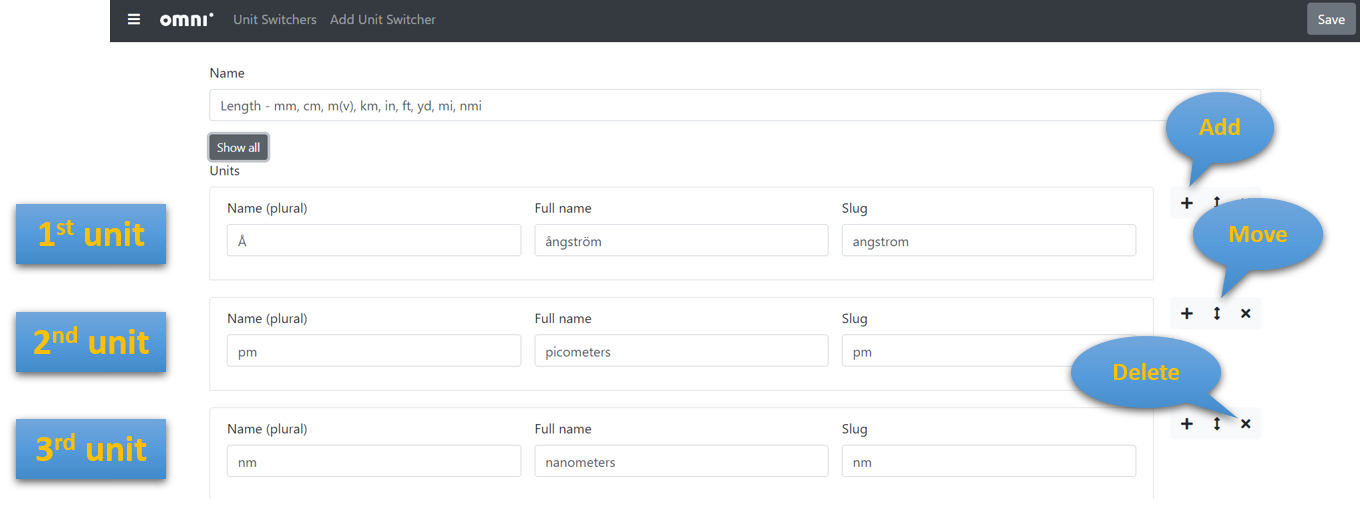
The unit switcher’s edit page
There are the following fields:
Name — It should be as descriptive as possible. It’s a good practice to mark which unit is the base one by adding (v) next to it.
Show all/Collapse all — Shows or hides some of the units’ fields. More on this at the end of the next section.
Units list — Each item has identical structure and attributes.
Add, Move, Delete buttons — Let you reorganize the number and order of units.
Warning
If you decide to remove a unit from an existing unit switcher, make sure it isn’t used in any calculators.
Units’ attributes
Here is the list of units’ fields you can edit:

Units’ attributes visible on a calculator page
Name (plural) — It’s usually the short version of a unit, e.g. cm. You can see it next to the long name in brackets.
Full name — Expansion of the abbreviation/acronym.
Slug — A unique attribute that helps distinguish between units and prevents duplicates.
Value — A conversion rate between units. The default unit has value
v. For instance, if the default unit ismeter (m), then the value forcentimeter (cm)is100*v.Reversed name (singular) — Usually the same as Name unless there is a difference between singular and plural. It’s used when the box “Works in reverse” is checked.
Reversed full name — The analogous relationship as between Full name and Name.
Comment — Use it, e.g., to explain a specific application of the unit.
Available by default — Check the box for commonly used variables or leave it empty for less popular ones.
Note
Name, slug, and value are obligatory fields for every unit. The remaining attributes are optional.
When you choose Collapse all, only the name, full name, and slug will be visible. To see all of the others, you need to select the Show all option.
Add Unit Switcher
To make a new unit switcher, go to Add Unit Switcher on the top panel. You need to input the obligatory fields for at least one unit. Click the Save button and a brand new unit switcher comes to life!
Note
If you want to create a new unit switcher, make sure there isn’t any similar, already existing one. Sometimes you may only need to add one or more units to one of the current unit switchers.
Warning
If you add a unit to an existing unit switcher, make sure it’s NOT available by default (otherwise it’ll appear in all calculators).
Unit Switchers naming convention
Ideally, the unit switcher’s name should be self-explanatory and easy to find. A good name may also involve:
Most common units; and
Default unit.
Sometimes, we add a prefix zzz, xxx, or others, to the unit switcher’s name. It indicates that this unit switcher is designed for a specific calculator and it’s pretty unlikely it’ll be used more often in the future.