Pictures
Due to performance issues, we try to keep our images as light as possible. We set our upper limit to 100 KB for a single illustration.
Before resizing, check the following sites to download and edit images:
pexels.com and unsplash.com — Databases with free pictures;
tinyjpg.com — Reducing the image size.
Note
If the image is in jpg or png format, you should always put it through tinyjpg.com , even if its size is already below 100 KB.
How to resize an image?
Here we present one of the possible ways to change the illustration size. To resize pictures, you’ll need:
paint.NET (desktop application for Windows). You can download it here.
tinyjpg.com (web application).
Note
Feel free to use any other image-editing software you’re comfortable with. Treat this instruction as an example of what you should pay attention to.
Repeat these steps for every image:
Download the selected image from the Internet.
Open the image in paint.NET. You can simply drag and drop it into the workspace.
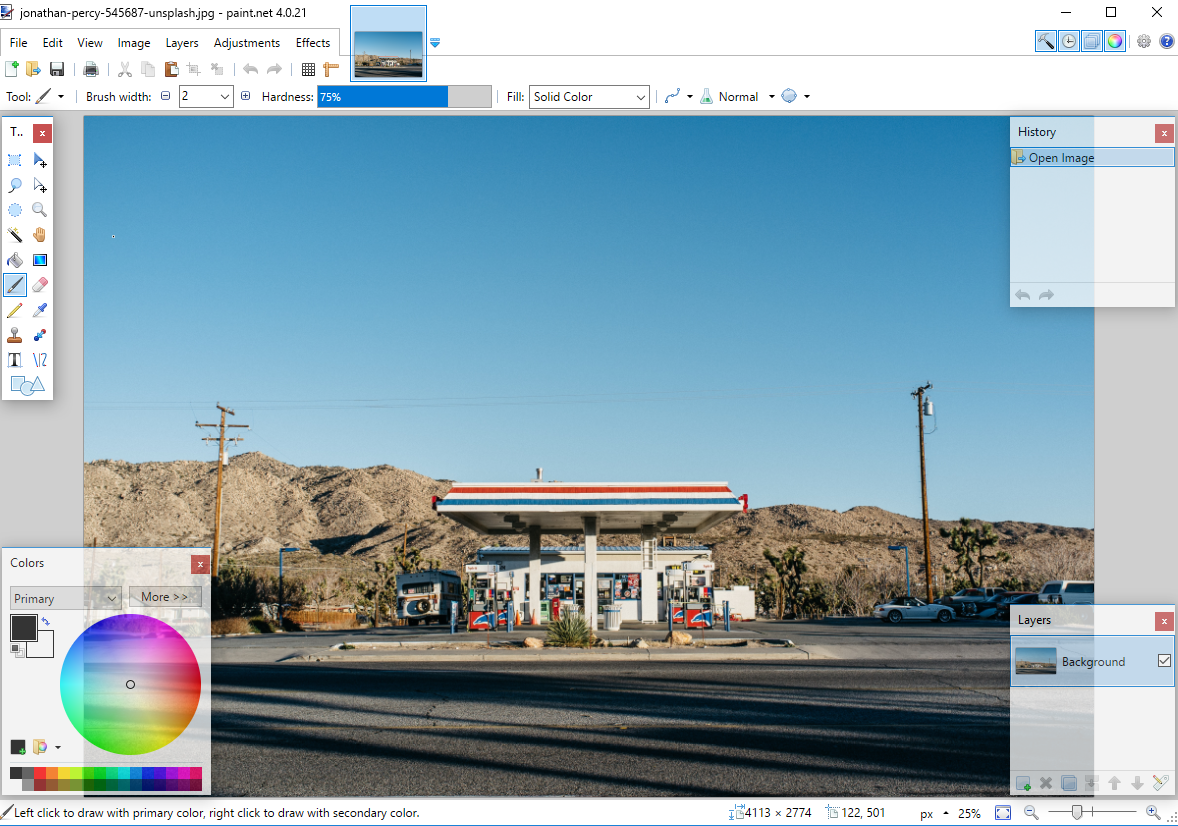
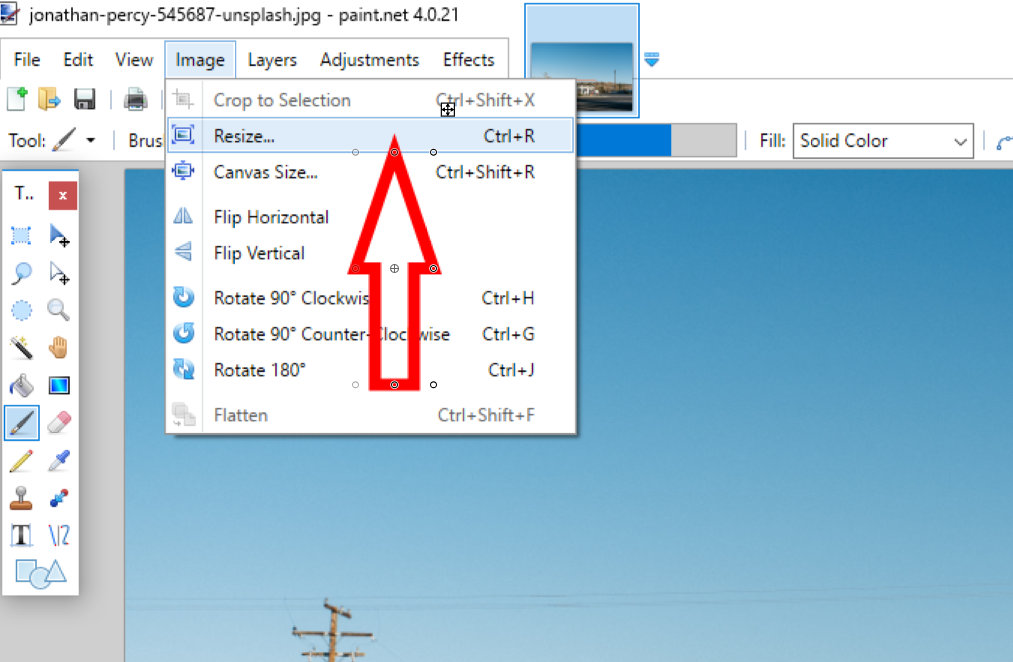
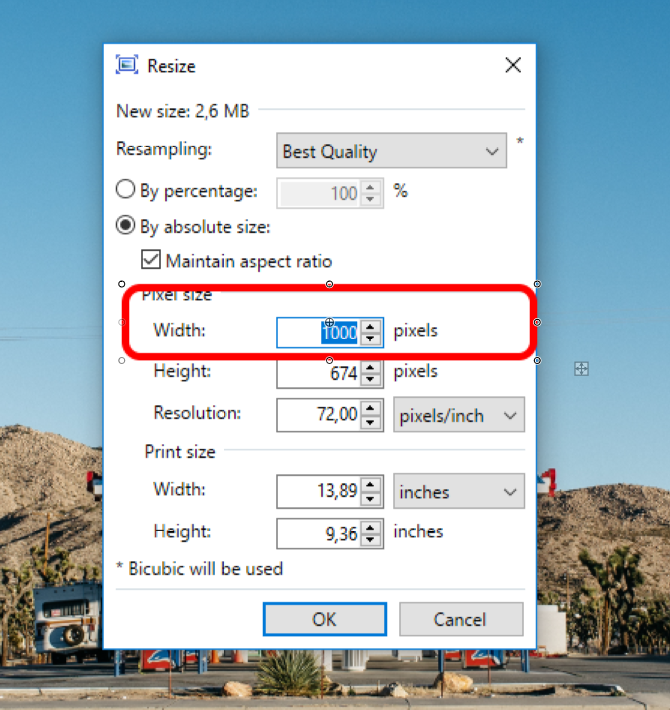
Resize the image. Set the image width to 1000 pixels (if the image is smaller, no need). The height will resize automatically. Click the OK button.
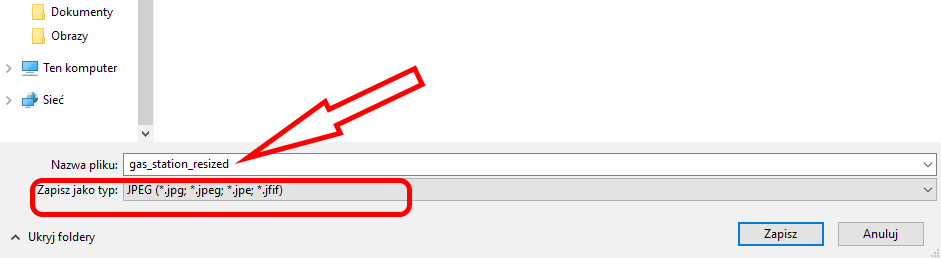
Set the file type and saving location.
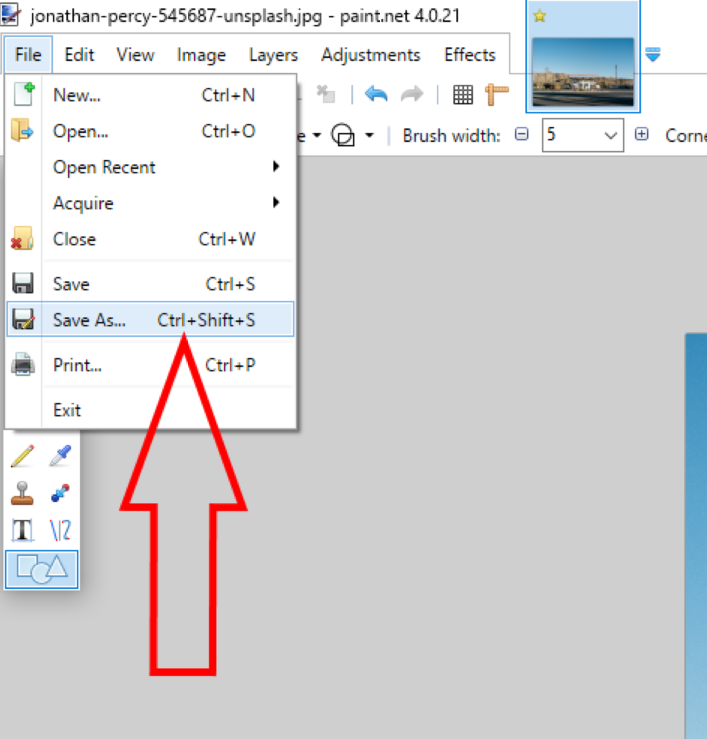
Use JPEG format and name the image appropriately. If the image is not as detailed as a photo (chart, table, etc.), PNG might be a better saving format. Click Save.
Set the image quality.
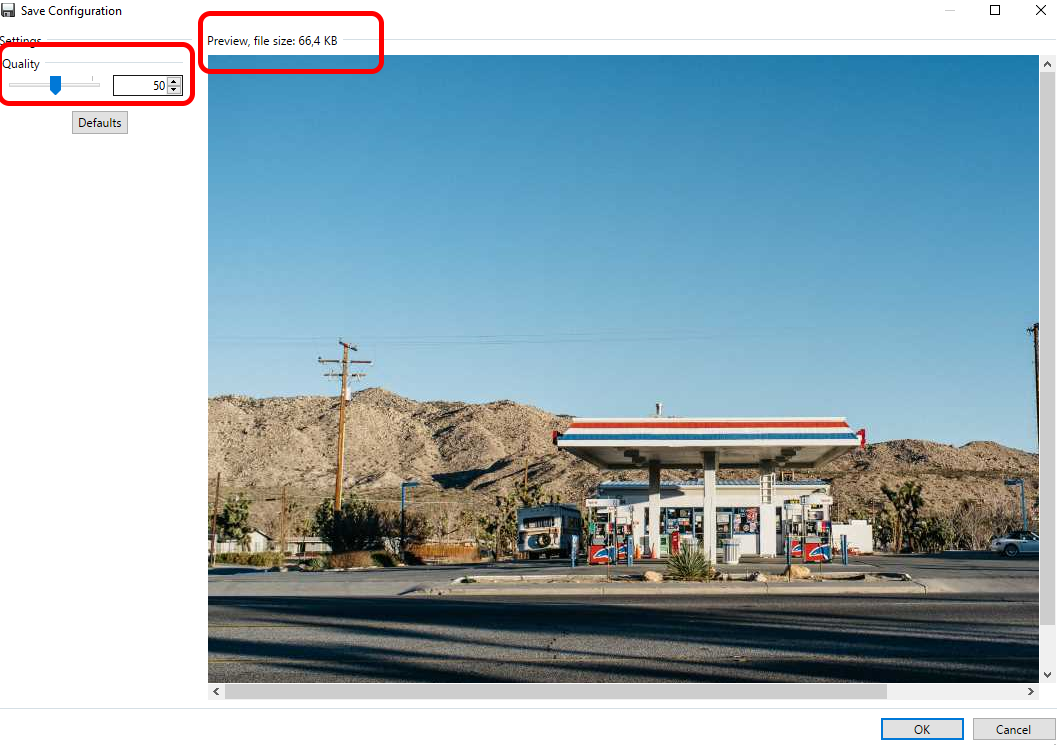
In the boxes you can see quality level (0-100) and predicted file size. We suggest that you set the quality around 50-60 → this image quality is still good and its size is acceptable. If this image quality produces an unintelligable image, select a higher value. Remember to not exceed 100 KB in image size (200 KB is the absolute limit in extreme cases).
Open tinyjpg.com and upload the resized image.
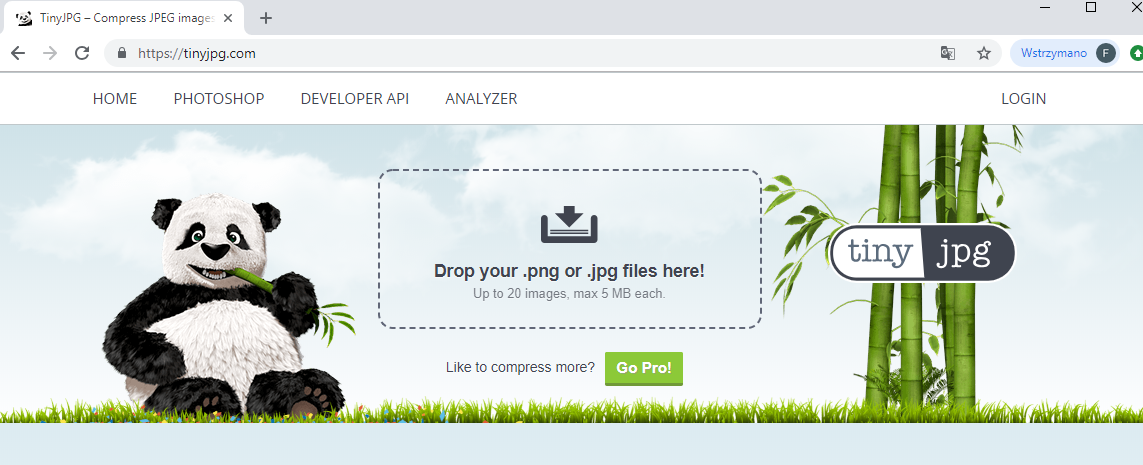
You can simply drag and drop the image or load it from a folder. tiny.jpg will drop the image size again (by deleting the metadata, etc.).
Download the resized image.
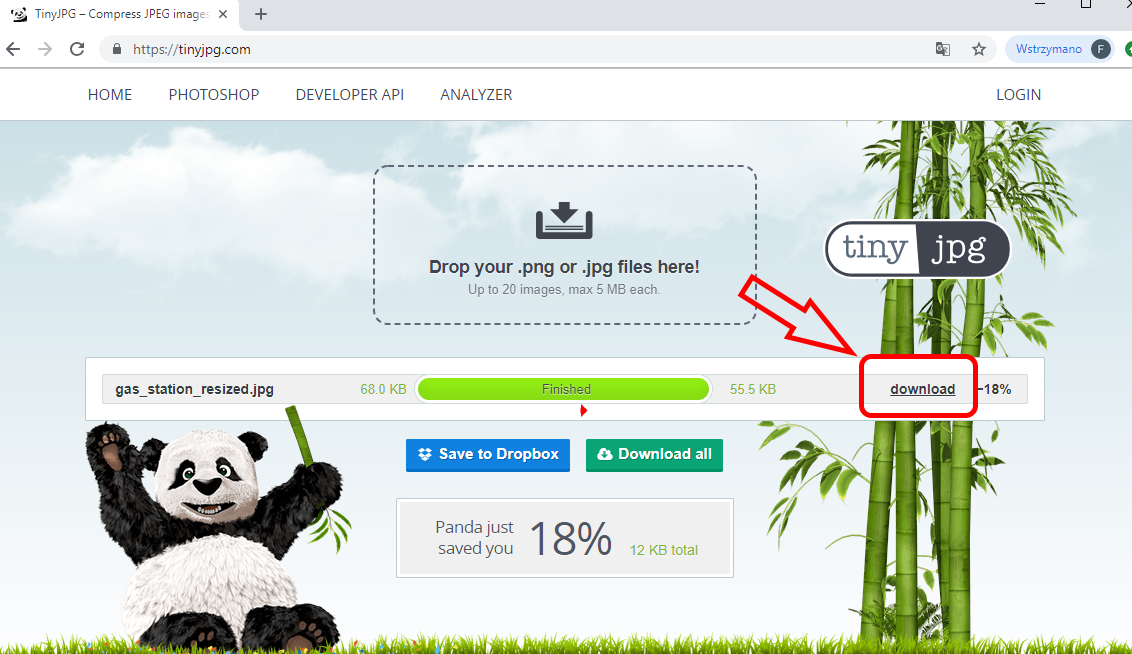
You can see that this removed part of the image size.
Now, the image is ready for uploading via Omni FTP!