Pictures
To enrich your text, you can add pictures. Here’s how.
Directly from a website, e.g.:
<img src="https://upload.wikimedia.org/wikipedia/commons/c/ca/Circle_lines.png">
Please don’t do this with any old website. It has to be able to serve the image quickly to our users, which Wikipedia does. If in doubt, upload the image to our FTP server.
From our FTP server, e.g.:
<img src=https://uploads-cdn.omnicalculator.com/images/pentagon-h-d.png">
Detailed instructions on uploading images in are the section How to upload pictures? below.
Important attributes
MUST DO: alt - Alternate text for an image. Provides alternative information for an image if a user for some reason cannot view it (slow connection, an error, using a screen reader). e.g.,
<img src="xxx.png" alt="image of pentagon with its diagonal and height">Height, width — Specifies dimension. E.g.:
<img src="xxx.png" width="45%">Aligning the image (right, left). E.g.:
<img src ="aaa.svg" align="right">Centering the image —
<center><figure><img src="aaa.JPG" width="40%"></figure></center>A good example of formatting an image with a caption you can shamelessly copy:
<center>
  <figure>
    <img src="https://uploads-cdn.omnicalculator.com/images/picture.png"  alt="Picture description" width="80%" align="left">
    <figcaption>
      <small>
        Figure caption (<a href="https://en.wikipedia.org/">wikimedia.org</a>)
      </small>
    </figcaption>
  </figure>
</center>
You may also use Markdown syntax to add images to your texts.
How to upload pictures?
Download Filezilla Client: https://filezilla-project.org
Install it on your computer.
Log in (details in the “Omni Common → Shared Accounts” file).
Put the pictures you want to upload in the “images” folder. Make sure that the pictures are open source (good sources are, e.g., www.pexels.com or https://unsplash.com) and that they’re not too large (ideally less than 100 KB — you can decrease their file size by using, e.g., https://tinypng.com). Here is how to resize images
The images are available at the following URL:
https://uploads-cdn.omnicalculator.com/folder_name/file_name. For example: https://uploads-cdn.omnicalculator.com/fbimages/car-vs-bike-screenshot.pngYou can now add the image to the text using the
imgtag, as discussed in the previous section. Here’s another example:<img src="https://uploads-cdn.omnicalculator.com/fbimages/car-vs-bike-screenshot.png" alt="cars are better than bikes, period!" />
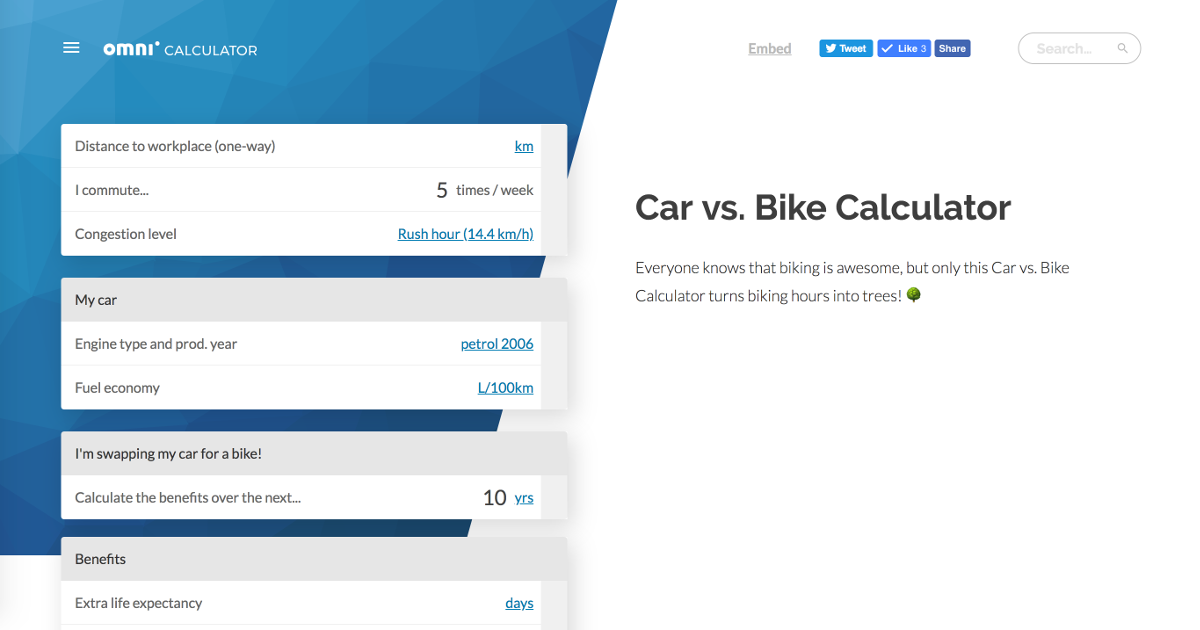
Free to use pictures resources
Google → images → Tools → Usage Rights → Creative Commons licenses
Stock photo account
Omni has an account with Depositphotos. See the “Omni Common → Shared Accounts” file for login details.
How to attribute the author?
External sites: Name of the picture (main domain www), e.g.:
<center>
  <figure>
    <img src="https://uploads-cdn.omnicalculator.com/images/picture.png" alt="Picture description" width="80%" align="left">
    <figcaption>
      <small>Figure caption (<a href="https://www.example.com/">example.com</a>) </small>
    </figcaption>
  </figure>
</center>
Wikipedia:
Select a picture on Wikipedia.
Click on the download button.
If you see, “You need to attribute the author”, click on “Show me how” and copy and paste the attribution and format as the example below.
<small>Skara Brae - Stone Age settlement (by Wknight94 - Own work, CC BY-SA 3.0, <a href=""https://commons.wikimedia.org/w/index.php?curid=2685554"">wikimedia.org</a>)</small>
If you see, “You can attribute the author”, click more details and check the licensing and what you should do.
If public domain, it’s free to use with no attribution.
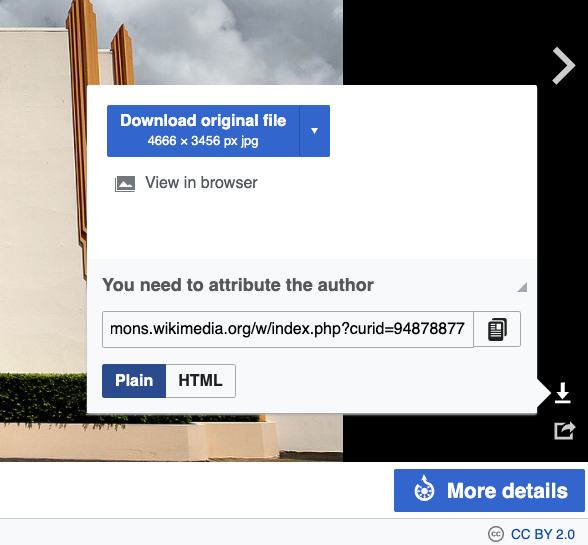
Example of where you check to see if you need to give attribution to a picture on Wikipedia.