Conditions
We can enforce conditions on what the user can input for certain variables. We might want to do this for a variety of reasons:
Avoid division by zero (an output of
Infinityotherwise appears);Avoid NaN (not a number) results (e.g., certain trigonometry functions and values);
Commonsense variable ranges (e.g., a person’s age is probably not going to be more than 120 years); and
Math definitions (e.g., percentages run from 0 to 100% – normally, anyway).
How to define a condition
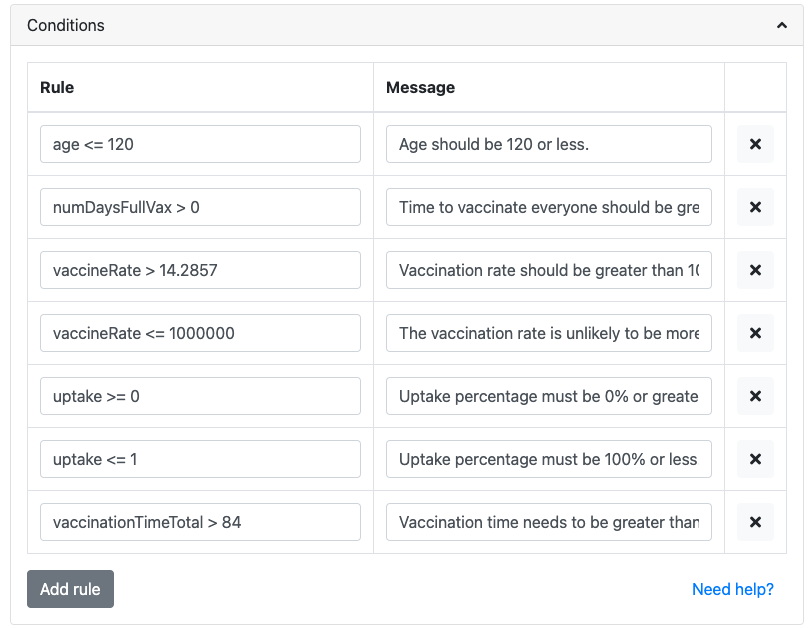
Example of the conditions section of the edit calculator page.
Type a rule you don’t want users to break and a message they’ll see if they do.
For example: rule a < 5 enforces a to be smaller than 5. This means user will see a warning (message) when they input a greater than or equal to 5.
In more detail, here are step-by-step instructions:
Open the Conditions tab and press the Add rule button.
Use the variable’s name and inequality sign and a number to define the condition. For example,
age <= 120says that the variableageneeds to be less than or equal to 120 years.Provide a helpful message to the user about why their input was rejected and what they can do to correct it. For this age condition, the message is “Age should be 120 or less.”
To apply a new or changed condition, you need to save the calculator before it is reflected in the calculator preview.
Warning
When a condition is triggered, the calculator and any CustomJS code you have written is never run! The calculator is stopped until the user enters the correct input the condition is looking for. Therefore, the condition message needs to give enough detail to let the user know how to fix the problem. E.g., give the range that is accepted.
Note
An old bug where every message had to be different is now fixed 🥳. It’s fine to repeat messages. Though please still make sure that each message is as helpful to the user as possible, so they know how to fix the problem with their input.
Condition inequality operators
You can use the following inequality operators in your conditions:
<– Less than;>– Greater than;<=– Less than or equal to; and>=– Greater than or equal to.
Specifying multiple conditions
To save writing serval rules, all with the same message, you can combine them into on rule by specifying more than one inequality in the Rule input field.
You do this by using a comma to separate each rule. For example, a > 3, a < 5 means than a should be greater than 3, but less than 5.
Using math.js functions as condition tests
You can use math.js functions in your condition rules. Two of the most useful are:
isInteger(a)– The valueamust be an integer; andisPrime(a)– The valueamust be a prime number.
Using Omni.define functions as condition tests
If the simple inequality operators are not enough for a very complex condition, you can use Omni.define functions, as long as they return true or false.
Detailed information on how to do that is covered in the CustomJS documentation section Adding custom conditions that stop the calculator.