Value selects
Value selects allow you to create a drop-down menu of textual options for the user to select from, instead of entering a number.
This is great for specifying common presets for a variable, or to create switches that turn calculator features on and off (e.g., combined with CustomJS, you can add a value select to show and hide a graph, depending on the user’s preference).
How to define a value select
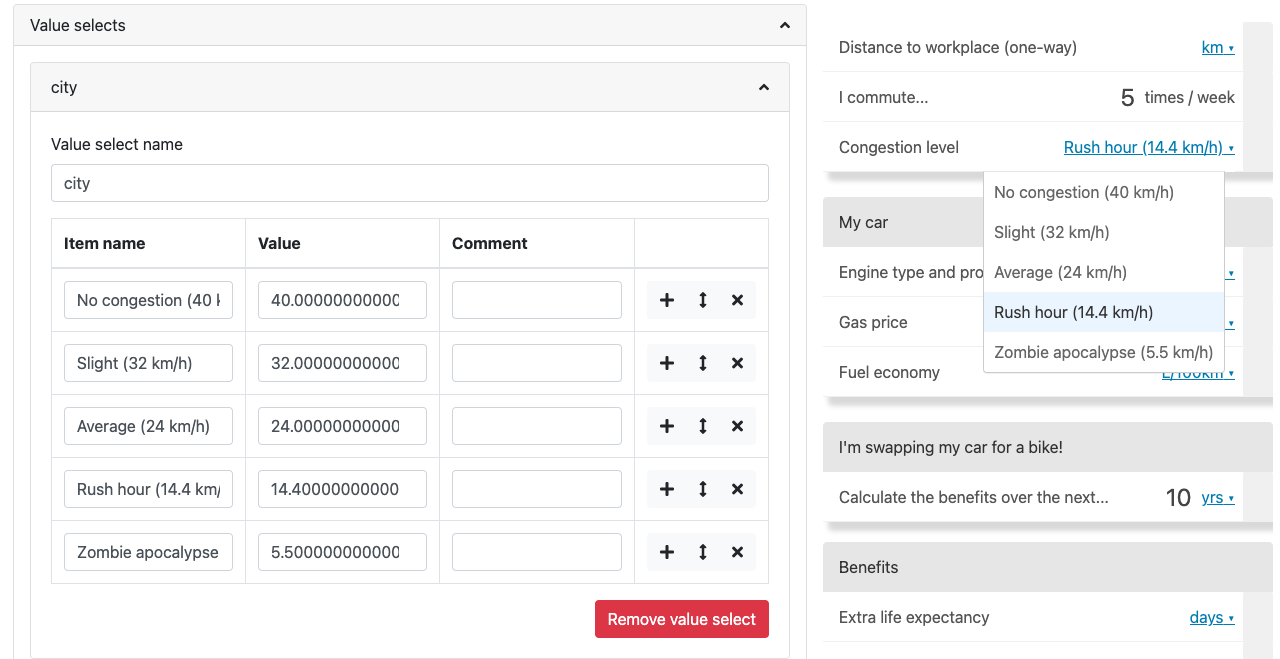
Example of a value select used to create presets for a variable.
In the Value selects section of the edit calculator page, here are the steps to create a value select:
Click the Add value select button to start creating a new value select.
Give your new value select a descriptive name. It will be used in the variable attribute Value select.
Enter a name for the first item of the value select. This name is what the user sees in the drop-down menu, so make sure it will make sense to the user.
Next, enter a value to associate with this first option. The variable that uses this value select will take this value when this option is selected by the user.
You can also add a comment to the item, which only appears on the calculator edit page.
Go ahead and add other value select items. Press the plus icon to add another one.
Finally, associate a variable with this value select by setting the attribute Value select to the name of this value select.
By selecting an option from the drop-down list, the variable takes the value defined in value select. So the variable can still be used in equations as usually.
Note
You can add, move or delete items of a value select using the plus, up-down arrow and cross icons, respectively.
Tip
If you also want the user to also be able to enter any value for a variable associated with a value select, link it together with a non-value select variable by adding another equation. For example:
foo_number = foo_valueSelect
If the calculator is then too cluttered, put the foo_number variable in advanced mode.
For the required value select style, check the value select section of the calculator style guide.
How to delete a value select
To delete a value select, open it open and click the red Remove value select button.
Make sure no variables are associated with this value select. If there are, you will see the following warning alert, letting you know which variables are current using it.
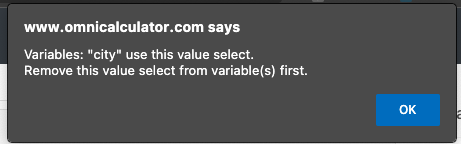
Example of the error you get if a variable is using the value select you are trying to delete.
Value selects in CustomJs
You can define value selects using code in the CustomJs section. However, using the methods above are preferred.