Links
The links tab is where you manage links to other calculators, based on keywords in your calculator text. The golden rule to remember is to only include a link once to each calculator.
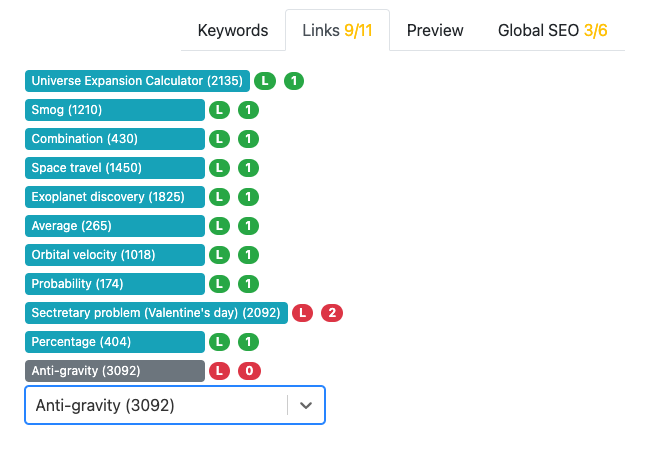
In the above example, the green links are present in the text once. The first red one is present twice, so one needs to be removed from the text.
Published calculators are colored blue, whereas unpublished calculators are colored grey. In this example, it isn’t mentioned in the text yet.
Note
It’s OK to include a link to an unpublished calculator. For now the link will not appear in your text on the website. Once the target calculator is published, the link will appear and work as expected.
Adding a link
To add a calculator link, you have two options. You can either start typing the name of the calculator in the text box below the list of links, or give the calculator’s ID number.
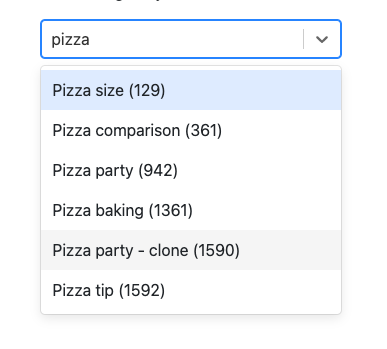
Once you see the calculator you wish to add, simply click on it.
Note
When entering an ID number and there are no results, it means that there is no calculator with that ID. It must have been deleted. In that case, double check the ID of the calculator you wish to add.
Adding the link code to the text
To actually add the link code to the text, here’s what you do:
Click on the calculator link you wish to add. You will then see all the keywords that are associated with that calculator.
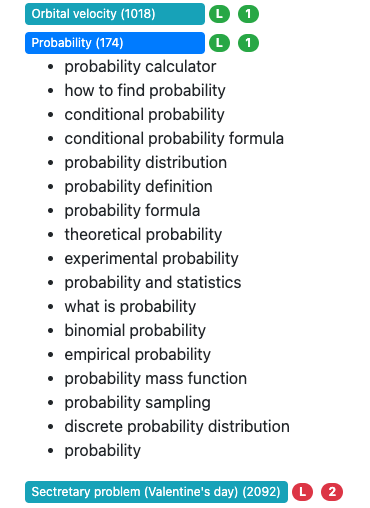
Now place your cursor in the text where you want the link to appear.
Click on the keyword you wish to use as the link text. Don’t worry! If you want to use some link text that isn’t listed as a keyword, you can change in a minute.
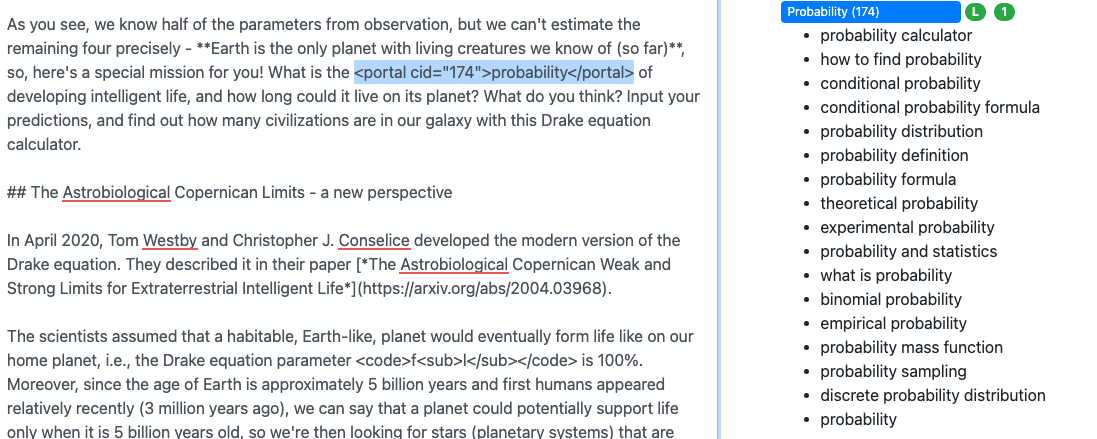
If you want to change the link text, simply change the text enclosed by the
<portal>tag.
Note
A link to a related calculator has the following format:
<portal cid="calculator-id">link-text</portal>
It is perfectly possible to add the links manually, though the clicking on the keyword method is much easier.
Tip
You you want to hide the list of keywords of a linked calculator again, simply click on it again.
Deleting a link
To delete a link from the list, hover over the link and click on the red trash can icon at the end of the line.
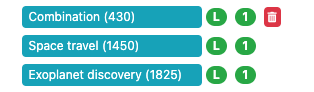
Note, that this does not also delete the link code from your text. If it exists, make sure to do this manually.
Note
Changes to the list of linked calculators are save immediately. There is no need to save the calculator, so you will not see the Save button turn yellow.
Furthermore, changes to the list of linked calculators are not stored in the revisions of the calculator text.